

Download Tipard Screen Capture – Free, Secure Screen Capture & Recording Tool for Windows & Mac
Overview
Tipard Screen Capture is a versatile screen‑capture and recording utility designed by Tipard Studio for desktop environments. Whether you need a quick screenshot for a tutorial, a high‑definition video walkthrough, or a crystal‑clear audio narration, this software bundles all three functions into a single, easy‑to‑use toolbar. The interface is deliberately minimalistic: a thin toolbar appears at the top of the screen, offering three core modes—Screen Capture, Video Recorder, and Audio Recorder.
Once you select a mode, you can define the capture area, toggle webcam overlay, adjust system and microphone volumes, and preview the result before saving. The tool supports a variety of export formats, allowing you to share captures instantly via email, cloud services, or social media. While it competes with well‑known tools like Snagit and Jing, Tipard Screen Capture distinguishes itself with a straightforward licensing model that includes monthly, annual, and one‑time purchase options, plus a free trial that lets you explore all features without commitment.
The software is built with performance and quality in mind. Recordings retain the original screen resolution and frame rate, and screenshots are saved without compression artifacts, ensuring professional‑grade output. Advanced users can dive into the Preferences window to fine‑tune recording parameters, hide the mouse pointer, assign hotkeys for instant capture, and set default output folders. Although the application is generally reliable, some users have noted that the start‑up time can be a bit slower on older machines, a point that Tipard acknowledges and continues to improve in upcoming updates. Overall, Tipard Screen Capture offers a balanced mix of simplicity, functionality, and flexibility, making it a solid choice for educators, gamers, developers, and anyone who regularly needs to capture visual content from their desktop.
Key Features
- Three Capture Modes: Instant screenshot, full‑screen or region video recording, and high‑quality audio capture.
- Webcam Overlay: Add a picture‑in‑picture webcam feed while recording tutorials or livestream highlights.
- Real‑Time Editing Tools: Crop, annotate, add arrows, text boxes, and blur sensitive information directly after capture.
- Customizable Output: Save to PNG, JPEG, BMP for images; MP4, AVI for video; MP3, WAV for audio.
- Hotkey Support: Assign global shortcuts for one‑click capture, eliminating the need to navigate the toolbar.
- Audio Mixer: Independently control system sound and microphone levels during recordings.
- Preference Center: Configure frame rate, resolution, mouse cursor visibility, and default save locations.
- Cross‑Platform Compatibility: Native builds for Windows 10/11 and macOS Catalina and later.
- Secure Licensing: Free trial, monthly, annual, or perpetual license with regular updates and premium support.
- Export Directly to Cloud: One‑click upload to Google Drive, Dropbox, or OneDrive for seamless sharing.
Each feature is designed to streamline the capture workflow. For example, the hotkey system lets power users start a recording without ever leaving the active application, which is invaluable during live demos or gaming sessions. The editing suite, while not as extensive as dedicated graphic editors, provides enough tools to quickly highlight key areas, making it perfect for instructional content. Moreover, the ability to mix system and microphone audio ensures that narration syncs perfectly with on‑screen actions, a common pain point in many free screen recorders. Tipard’s commitment to regular updates means that new formats and performance optimizations are added frequently, keeping the tool relevant in a fast‑evolving software landscape.
Installation & Usage Instructions
Step‑by‑Step Installation
- Visit the official Tipard website and click the Download button for your operating system (Windows or macOS).
- Run the installer file (
.exefor Windows,.dmgfor macOS). Follow the on‑screen prompts: accept the license agreement, choose an installation folder, and click Install. - After installation, launch Tipard Screen Capture. The free trial will start automatically, giving you 7 days of unlimited access to all features.
- If you decide to purchase, open the Help → Activate License menu, enter your license key, and restart the application.
How to Capture a Screenshot
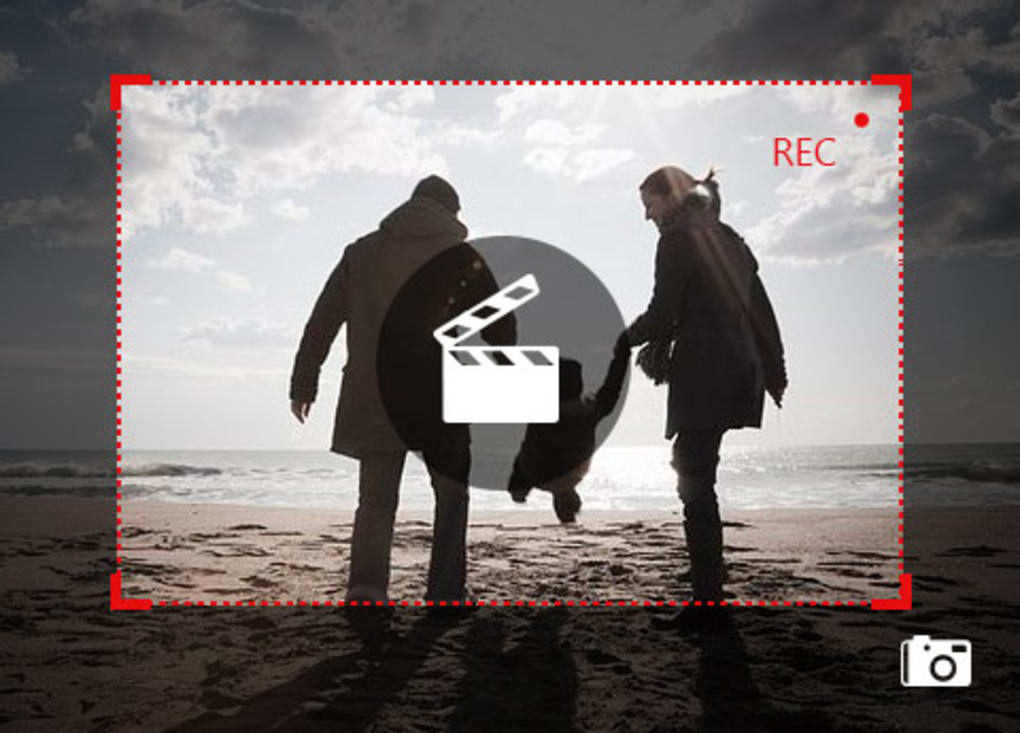
When the toolbar appears, click the Screen Capture icon. A semi‑transparent overlay will let you drag to select a region or choose Full Screen. Once you release the mouse, a preview window opens with annotation tools. Use the Crop, Arrow, Text, and Blur icons to edit. Click Save to store the image in your chosen folder or copy it directly to the clipboard for immediate pasting.
Recording a Video
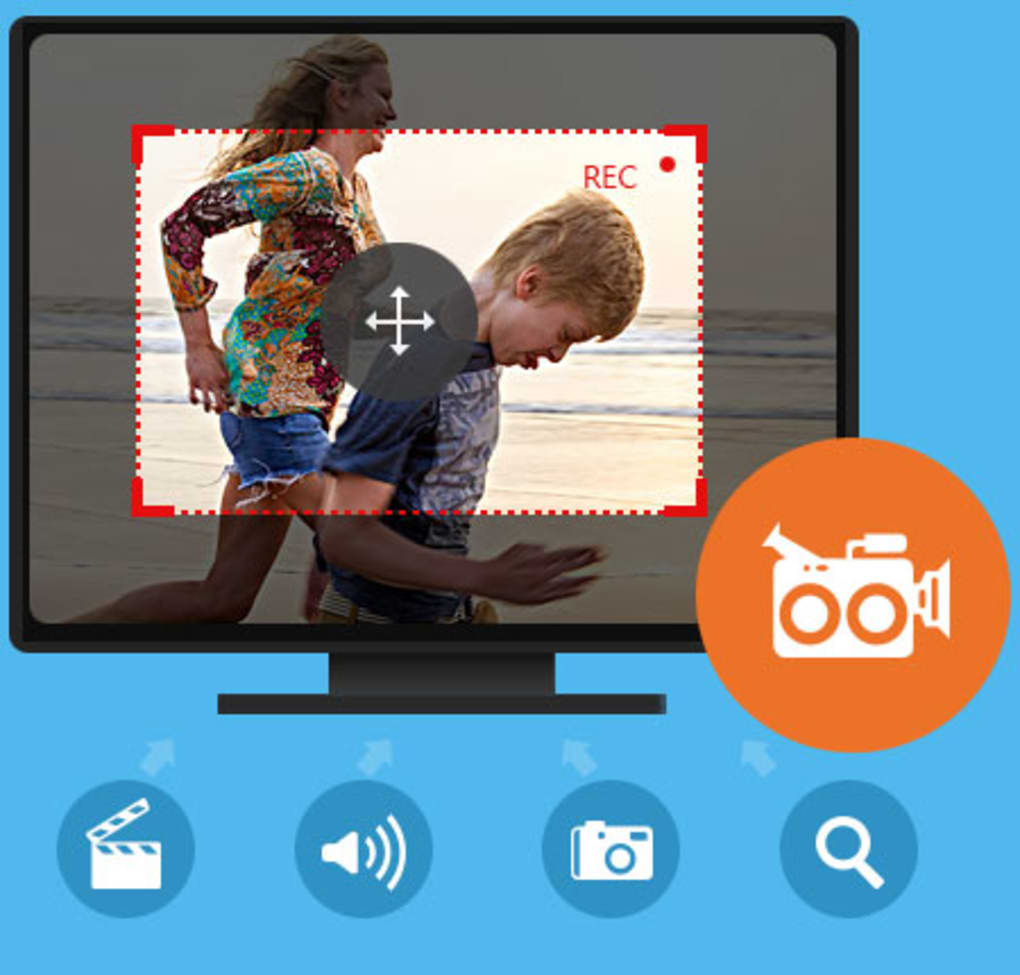
Select the Video Recorder mode. Define the capture area (full screen, window, or custom region) and enable optional webcam overlay via the Webcam toggle. Adjust system and microphone volumes using the sliders.
Press the Start button; a small timer will appear in the corner. When finished, click Stop. The video is automatically rendered in MP4 format with the preset frame rate (default 30 fps).
You can then open the file in the built‑in player, edit metadata, or export it to cloud storage.
Audio‑Only Recording
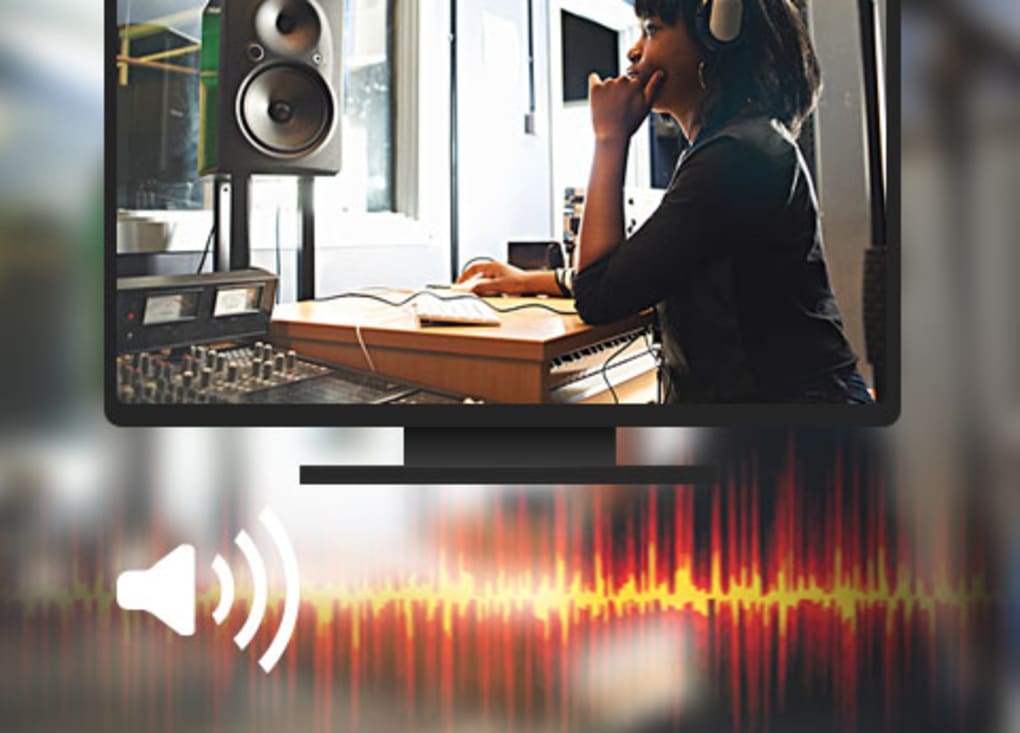
Click the Audio Recorder icon. Choose whether to capture system audio, microphone input, or both. Set the desired bitrate (128 kbps is standard) and press Record. After stopping, the audio file is saved as MP3, ready for podcasting or voice‑over work.
Tipard also offers a Preferences window where you can configure default output folders, enable hotkeys (e.g., Ctrl+Shift+S for screenshot), and decide whether the mouse cursor appears in recordings. These settings are saved per user profile, making it easy to switch between personal and professional workflows.
Compatibility, Pros & Cons
Supported Platforms: Windows 10, Windows 11 (64‑bit) and macOS Catalina (10.15) or later. The application runs natively, without the need for additional runtimes such as Java or .NET, ensuring smooth performance and lower system overhead.
Pros
- Intuitive toolbar with three distinct capture modes.
- High‑quality output (lossless screenshots, 1080p video at 30 fps).
- Robust editing suite for quick annotations.
- Hotkey support accelerates workflow.
- Flexible licensing (monthly, annual, or perpetual).
- Direct integration with popular cloud services.
- Regular updates and responsive customer support.
Cons
- Initial launch can be slower on older hardware.
- Lacks advanced video editing features (e.g., transitions, multi‑track timeline).
- No built‑in streaming capability; recordings must be exported first.
Despite the minor drawbacks, the balance of ease‑of‑use and professional‑grade output makes Tipard Screen Capture a compelling choice for both casual users and power users. The occasional lag during start‑up is often mitigated by keeping the application updated, as Tipard regularly releases performance patches.
Frequently Asked Questions
Is there a free version of Tipard Screen Capture?
Tipard offers a 7‑day free trial that provides full access to all capture modes, editing tools, and export options. After the trial expires, you’ll need to purchase a license to continue using the software.
Can I record my webcam while capturing the screen?
Yes. In Video Recorder mode, you can enable the webcam overlay, position it anywhere on the screen, and even choose between picture‑in‑picture or side‑by‑side layouts.
What output formats are supported for video recordings?
Video files are saved primarily in MP4 (H.264) for universal compatibility. You can also export recordings as AVI if you need a legacy format.
Does Tipard Screen Capture work on Linux?
Currently, Tipard provides native builds only for Windows and macOS. Linux users can run the Windows version through compatibility layers like Wine, but this is not officially supported.
How secure is my data when I upload captures to the cloud?
All cloud uploads use SSL/TLS encryption, ensuring that your screenshots and videos are transmitted securely. Tipard does not store your files on its own servers; they are saved directly to your chosen cloud account.
Conclusion & Call to Action
Tipard Screen Capture delivers a well‑rounded set of features that cater to both beginners and seasoned creators. Its clean toolbar, three capture modes, and real‑time editing tools eliminate the need for multiple utilities, while the licensing flexibility lets you choose a payment plan that matches your budget. Although the start‑up speed could be improved on legacy machines, the overall performance and output quality remain impressive. If you need a reliable, all‑in‑one solution for screenshots, tutorial videos, or audio narrations, Tipard is worth a test drive.
Ready to streamline your visual content workflow? Download Tipard Screen Capture now, start the free trial, and experience professional‑grade screen capture without the steep learning curve.